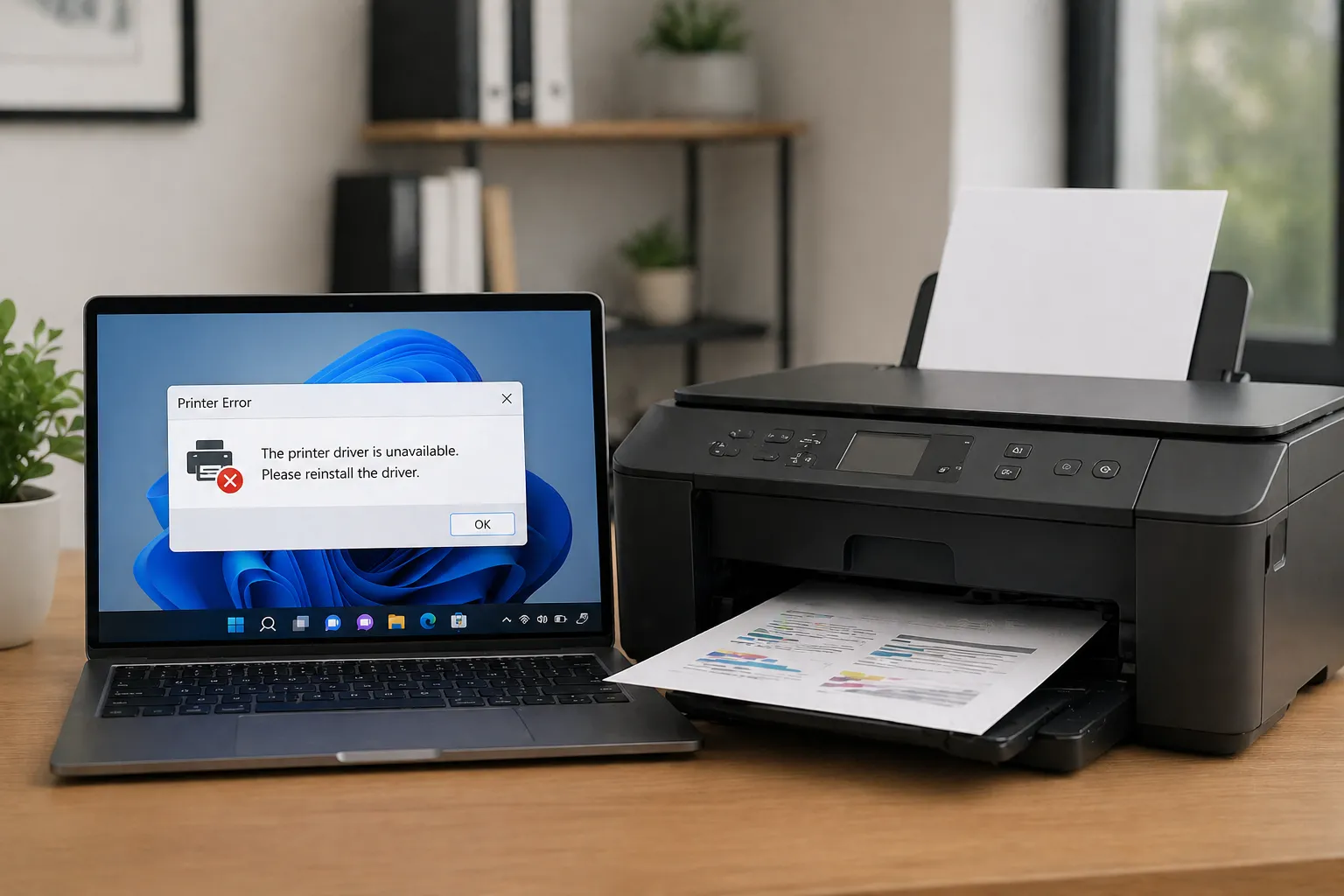
Why is it that the most advanced computers still struggle with the humble printer? The answer lies in the complex "handshake" between the Windows Print Spooler and the printer's driver. When this synchronization breaks, your documents get stuck in a digital limbo.
How the Windows Print Spooler Works
The Print Spooler is a service that manages the "queue" of documents waiting to be printed. Instead of sending data directly to the printer, Windows creates a temporary file (the spool) and stores it on your hard drive. The spooler then feeds this data to the printer driver, which translates it into a language the hardware understands (like PCL or PostScript).
If the driver crashes or the printer sends a "busy" signal that the spooler doesn't expect, the entire service can hang. This is why "Restarting the Spooler" is the most common fix for printer issues.
The "Nuclear Option": Clearing the Spooler Cache
Sometimes, a corrupted print job gets stuck in the spooler's memory and survives a reboot. In these cases, you must manually purge the spooler's temporary storage folder.
Step-by-Step Spooler Purge
- Press Win + R, type
services.msc, and hit Enter. - Find Print Spooler, right-click it, and select Stop.
- Navigate to:
C:\Windows\System32\spool\PRINTERS. - Delete every file inside this folder (you may need Admin permission).
- Go back to the Services window and Start the Print Spooler service.
Pro Tip: Standard TCP/IP vs. WSD Ports
Windows often defaults to using "WSD" (Web Services for Devices) ports for network printers. WSD is notoriously unstable. For a permanent fix, go to Printer Properties > Ports and add a Standard TCP/IP Port using your printer's static IP address. This bypasses the buggy WSD discovery layer.
Driver Types: Class Drivers vs. V4 Drivers
In Windows 10 and 11, Microsoft introduced "Class Drivers" to provide basic functionality without manufacturer software. While convenient, they often lack critical features like duplex printing, ink level monitoring, or tray selection.
- V3 Drivers: The classic architecture. Robust but can cause system-wide spooler crashes if they fail.
- V4 Drivers: Modern, isolated drivers that won't crash the whole spooler if they encounter an error. These are preferred for enterprise environments.
- PostScript vs. PCL: If you are printing high-end graphics, ensure you are using the PostScript (PS) driver version if available, as it offers better color accuracy and font handling.
Conclusion
Printer synchronization is a delicate balance between the Spooler service and the specific port configuration of your driver. By moving away from unreliable WSD ports and knowing how to clear the underlying spooler cache, you can turn a frustrating "Printer Offline" error into a thing of the past. Always prioritize manufacturer-specific V4 drivers for the best combination of features and stability.

