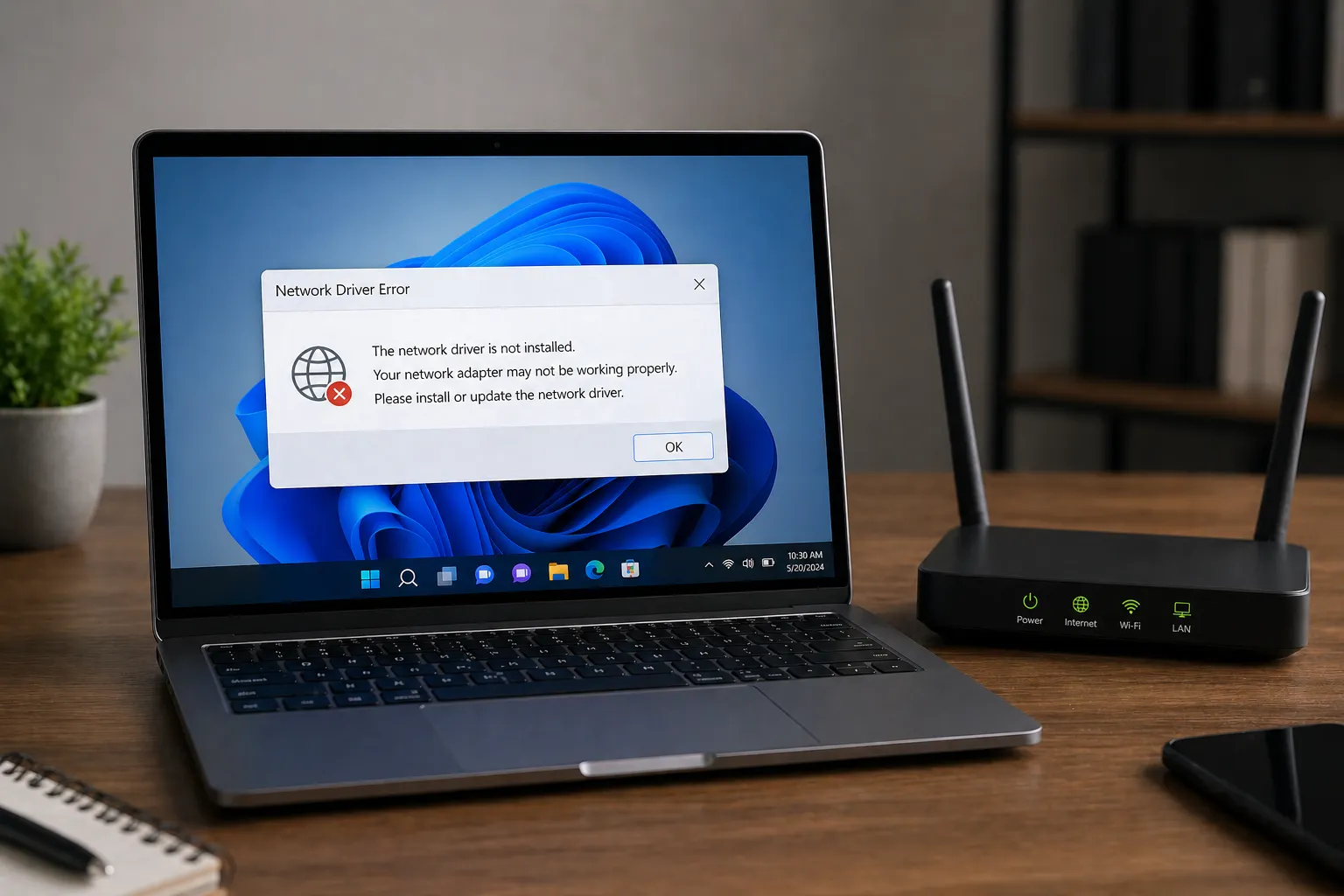
Is your WiFi dropping out during important video calls? Or perhaps your Ethernet speed feels capped despite having a high-speed fiber connection? Often, the culprit isn't your Internet Service Provider (ISP), but rather how your network driver handles data transmission and power states.
Understanding the Physical vs. Logical Link
Your network adapter (NIC) is a complex radio or transceiver that requires precise instructions from its driver to maintain a stable link. When a driver is outdated or poorly configured, it may struggle to negotiate the "handshake" with your router, leading to high latency (ping) or frequent disconnections.
Advanced WiFi Configuration: Channel Widths
One of the most overlooked settings in your network driver properties is the Channel Width (also known as Bandwidth). Modern routers support 20MHz, 40MHz, 80MHz, and even 160MHz widths.
- 20MHz: The narrowest and most stable channel. Use this in crowded apartment buildings where many WiFi signals overlap. It has lower maximum speed but better penetration and less interference.
- 40MHz/80MHz: Wider channels that allow for much higher data throughput. This is ideal for 5GHz and 6GHz bands in environments with minimal interference.
- The Driver Conflict: If your driver is set to "Auto" but your router is forced to a specific width, you may experience "connection flapping" where the link resets every few minutes. Manually matching the driver to the router's width can solve this.
Key Fix: Disable Power Saving
Windows has a default setting that allows it to turn off your network card to save power. This is the #1 cause of "WiFi disconnects when idle" issues. Go to Device Manager > Network Adapters > [Your Adapter] > Power Management and uncheck "Allow the computer to turn off this device to save power."
The IPv6 vs. IPv4 Driver Conflict
As the internet transitions to IPv6, many older network drivers struggle to handle both protocols simultaneously. This can lead to a "Connected, no internet" message or specific websites failing to load while others work perfectly.
Troubleshooting Protocol Issues
If you experience "lag spikes" during gaming or streaming, try temporarily disabling IPv6 in your adapter settings to see if the stability improves. This forces the driver to use the more mature IPv4 stack, which often resolves routing issues caused by buggy firmware on ISP-provided routers.
Optimizing Throughput: MTU and Roaming Aggressiveness
For advanced users, two more driver settings can make a massive difference:
- Roaming Aggressiveness: If you use a laptop and it keeps connecting to a distant router instead of a nearby mesh node, set this to "Highest." If it keeps switching between two nodes and dropping the connection, set it to "Lowest."
- Interrupt Moderation: For gamers, disabling this can reduce latency by allowing the CPU to process network packets immediately, though it slightly increases CPU usage.
- 802.11n/ac/ax Wireless Mode: Ensure this is set to the highest standard your hardware supports to prevent the driver from falling back to legacy (and slower) speeds.
Conclusion
Network stability is rarely about the "speed" of your plan and almost always about the "quality" of the connection between your PC and your router. By adjusting channel widths, disabling aggressive power management, and ensuring your driver is correctly configured for your environment, you can eliminate the frustrations of lag and dropouts forever.
